
Design Target: Easy use for all people, including beginners
Role: This is an independent project. The designer is responsible for the creation, research, UX design, UI design and animation
Why users need a new design?
Drones become popular in the photograph, but not other fields. Because of the unique functions of drones, they will be used more in other fields, like indoor.
Eagle security drone is an indoor drone system. Users can use it to monitor their house or storage. Learn more about Eagle here. There is the difference between Eagle indoor drone and photograph drone. Indoor drone needs easy and efficient, but photograph drone needs accurate control. All these different functions make their APPs different.
function analysis


Eagle indoor drone
DJI Mavic Pro
Function
Indoor cruise; Monitor
Photograph; Art creation
Hardware
360° camera; multifunctional base
Foldable body; Wide-angle camera; removable battery
Long distance information transition; Environment awareness; 4K video; Small body
No blind angle; High vision ability in low light; Fire detection; Stop at any time; Auto cruise
Feature
Need
Easy control; Easy zoom; Set cruise route; Monitor status
Accurate control; Camera mode setting; Camera adaptation; Fly status


elements for indoor drone
easy control direction and height
auto Cruise; set cruise route
easy to zoom

status, includes battery and fire detection
Video and share
save setting
case study
From controller to a mobile game, they all design different direction control solutions. All solutions have their advantages which will help the new design.
case 1 - DJI controller
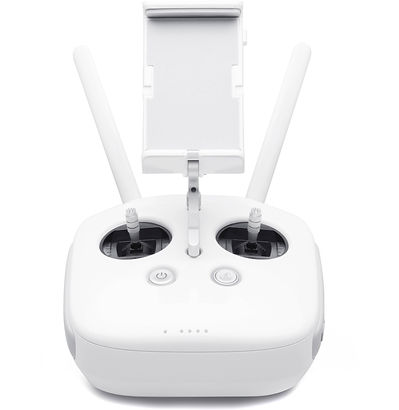
This is factory setting. Setting like this is easier for everyone. Virtual stick control in DJI APP is designed like the DJI controller.

back
forward
right
left
up
down
right turn
left turn
Case 2 -DJI Control APP


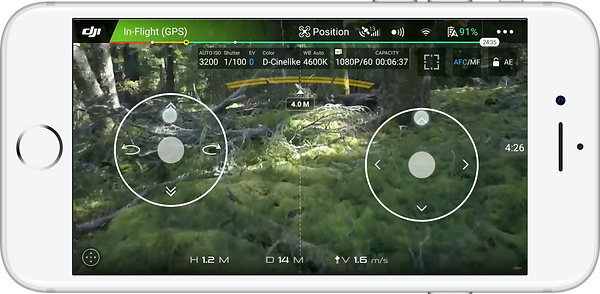
DJI control screens are complicated. Many elements are on the screens. I listed all the all elements. Based on function analysis, I picked out elements which are useful for the Eagle system.
time
fly statuse
GPS signal
wifi signal
obstacle warning
virtual control stick
camera up-down angle control
battery
take off confirmation
video record
camera setting
flying information
case 3 -Mobile Games

back
forward
right
left
Fingers Movement Diagram
Two-hand control is usually, so down left and down right are main control area. Most functions will be designed in the main control area.

How to let people control drone easily?
easier direction control
There are two directions to make control easier. One is to make direction control easier. Second is to let drone fly itself.

360°
Flying is three dimension which converts into three pairs of control: right-left, forward-backward, up-down. Vision angle is limited, so camera right/left/up/down turn are needed. In conclusion, there are four pairs of control elements.
Based on this conclusion, I designed 2 solutions for fly control and surveyed to make sure which is the best for users. Target users are people who have no experience of drone control. I asked them which they want to use mostly when they control a flying drone. And let them decide arrangement of the elements freely.
solution 1


It is the standard for DJI drone. The purpose is precise control. Camera up/down angle is adjusted by another element.
solution 2
left/right + forward/backward
camera up/down control
up/down + camera right/left turn
up/down
camera up/down/left/right control
left/right + forward/backward
Comparing to solution 1, I add camera right/left to camera up-down and make up/down control alone. Fewer elements make drone control easier.
of people choose solution 2
of people put left/right/forward/backward on right
62%
83%
92%
of people think three control elements are hard
let drone fly itself

Users don't need to control the drone by themselves. What they need to do is taping on the screen. The drone will fly to the location automatically.
tape on screen


When users touch the map icon, the map of their house will show. Users can tape the map to tell drone where to inspect.
tape on map
tape where you want to inspect
wireframe

When the drone is too close to objects, the obstacle detection will turn red to warn users.
The status bar shows fly status, wifi signal, battery and setting.
Factory setting is tap screen to fly. Virtual stick switch is off. Users can operate without virtual sticks. They tap on destination. And the drone will fly there.
This is forward/back/left/right stick. According to research, users are more like this stick on the left. Users can change it in ‘Setting’.
This stick only controls up and down. Right/left turn is separated by height control. So view angle will change when users drag the screen.
After recording, reviewing is a priority need. Fast forward and fast back have high value during reviewing.
The purpose of recording is sharing so sharing has higher priority.